Updating the Media Contact Information /news Page
The “Media Contact” information can found on the page at: <your-domain>.ku.edu/news.
- You may have to scroll down the page to see the Media Contact section on the right side of the page.
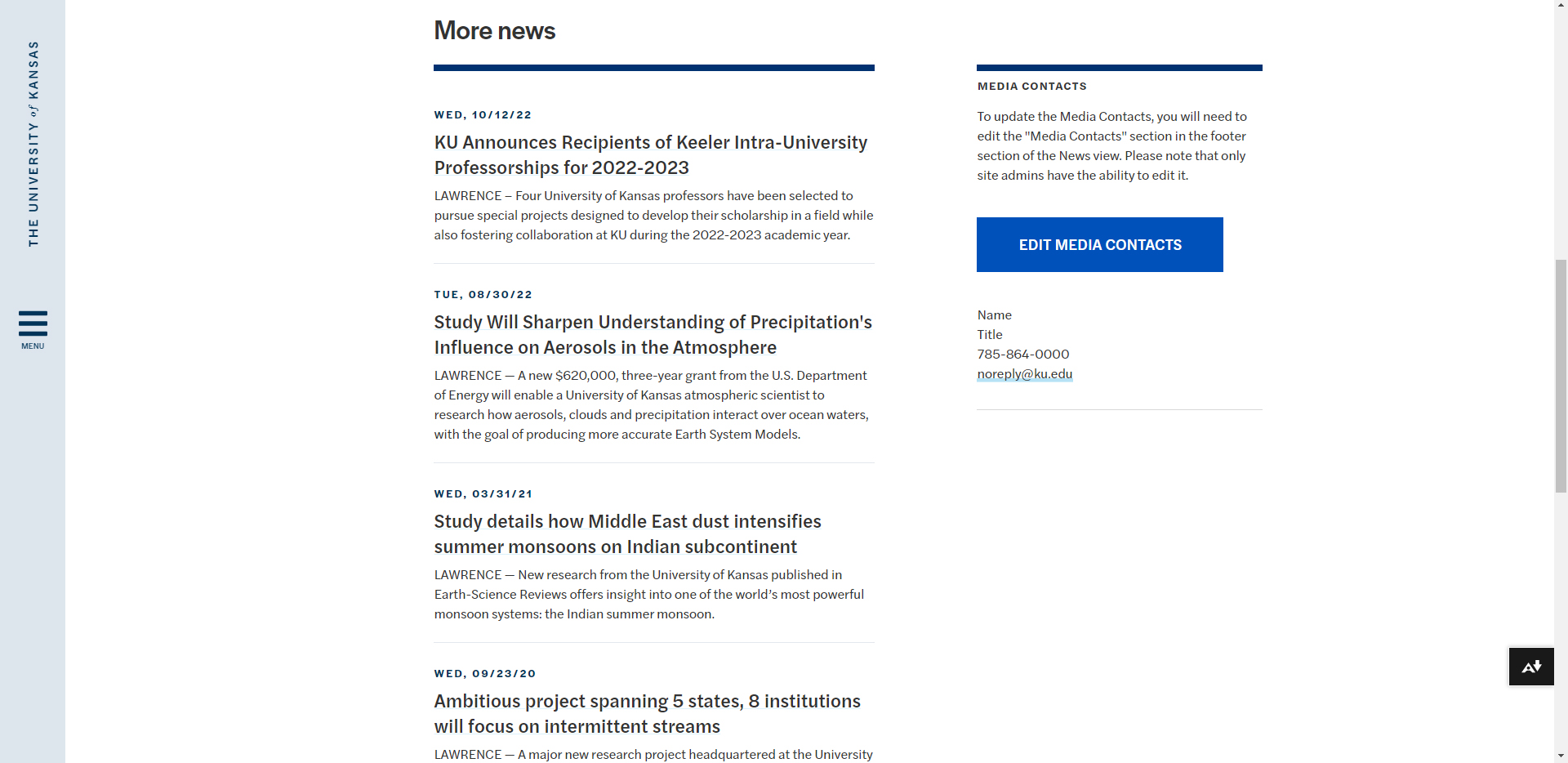
- In case the 'Edit Media Contacts' button doesn't appear, try <your-page-name>.ku.edu/admin/structure/views/view/news
- You will be redirected to a screen in the admin section. You will need to be logged in, and you will need to be a site administrator, to make the necessary changes.
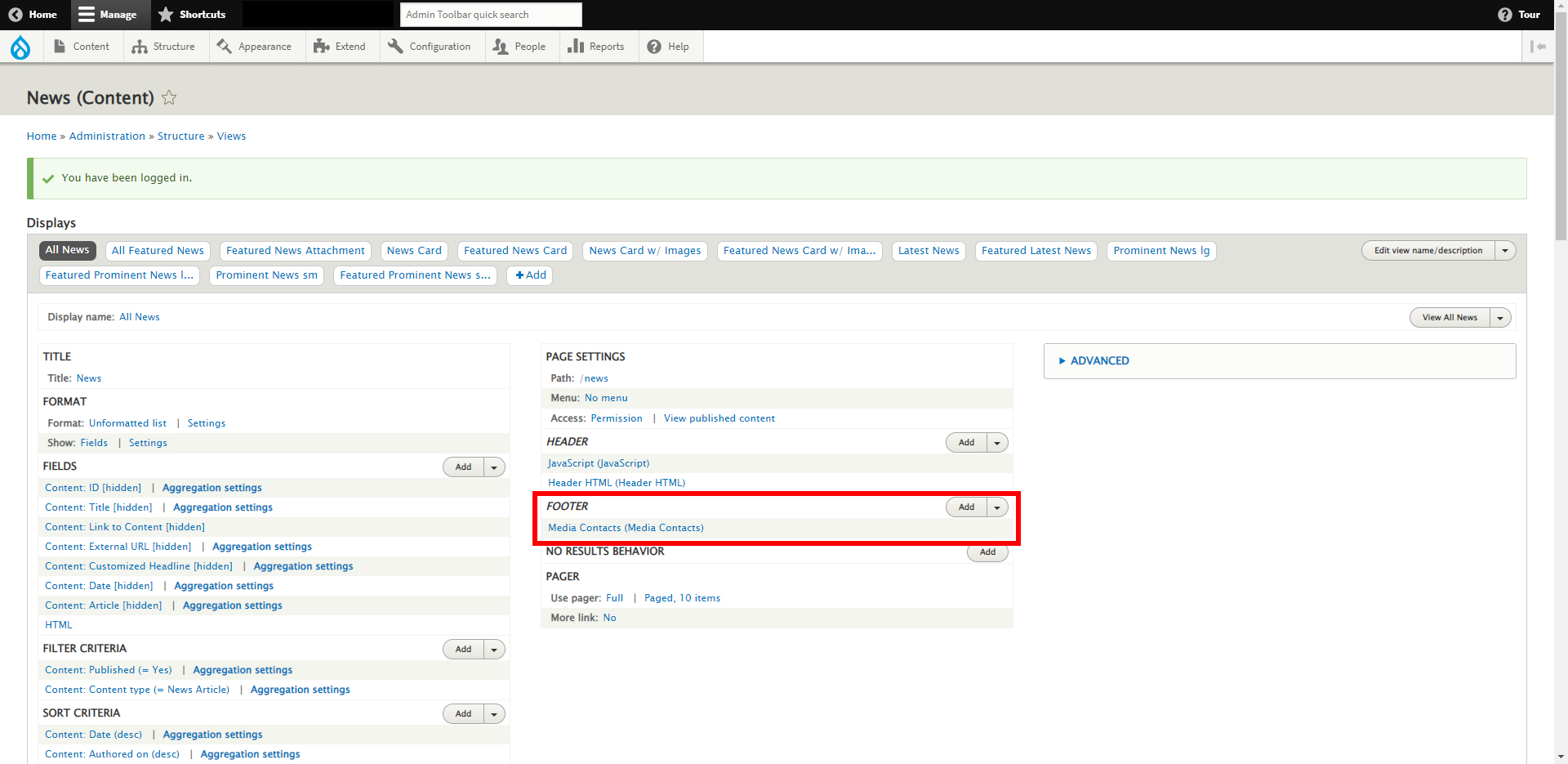
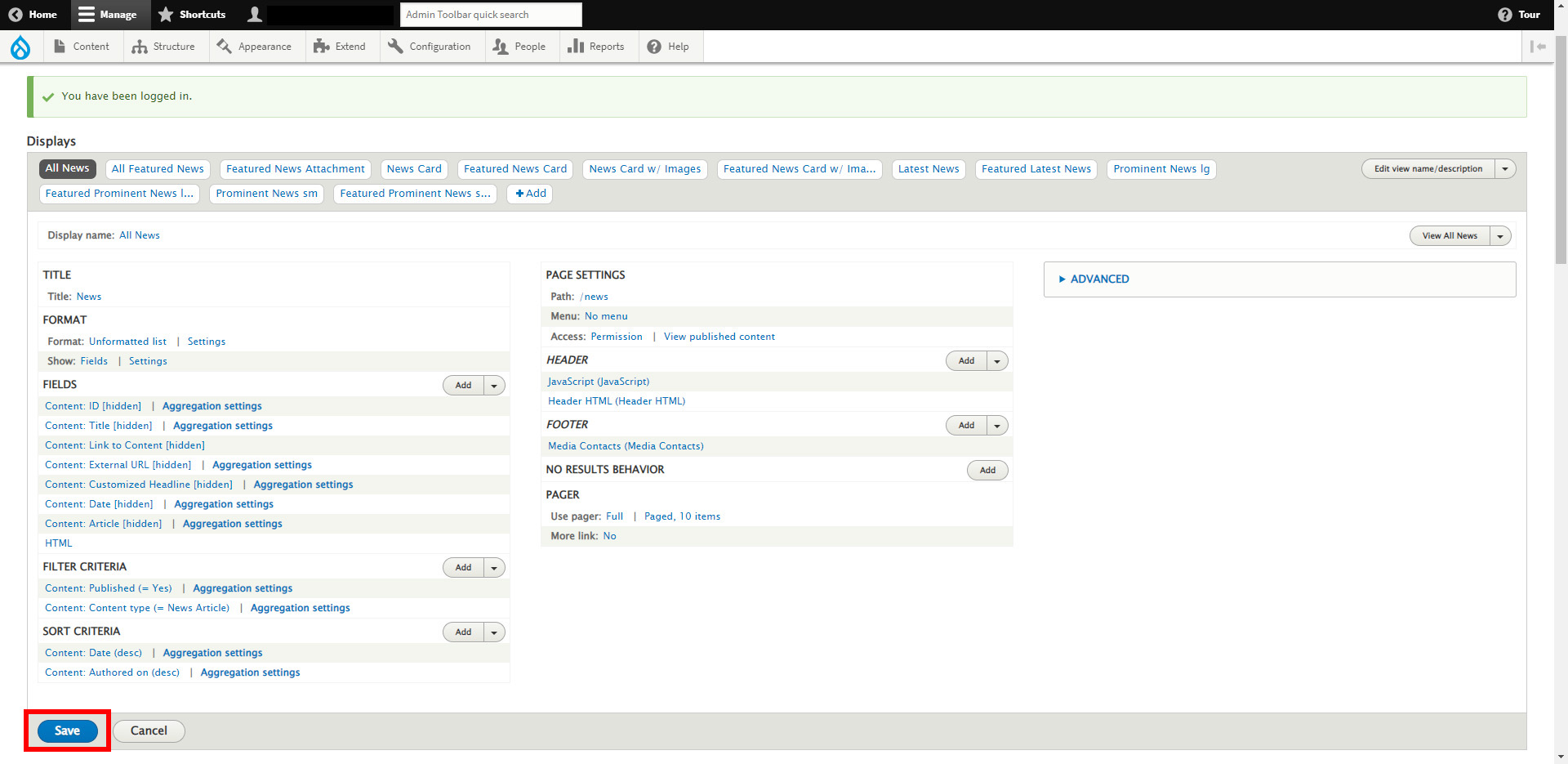
- The following screenshot shows the admin screen and highlights the "Footer" area that requires your attention.
- In the 'Footer' section, select the link titled "Media Contacts (Media Contacts)"
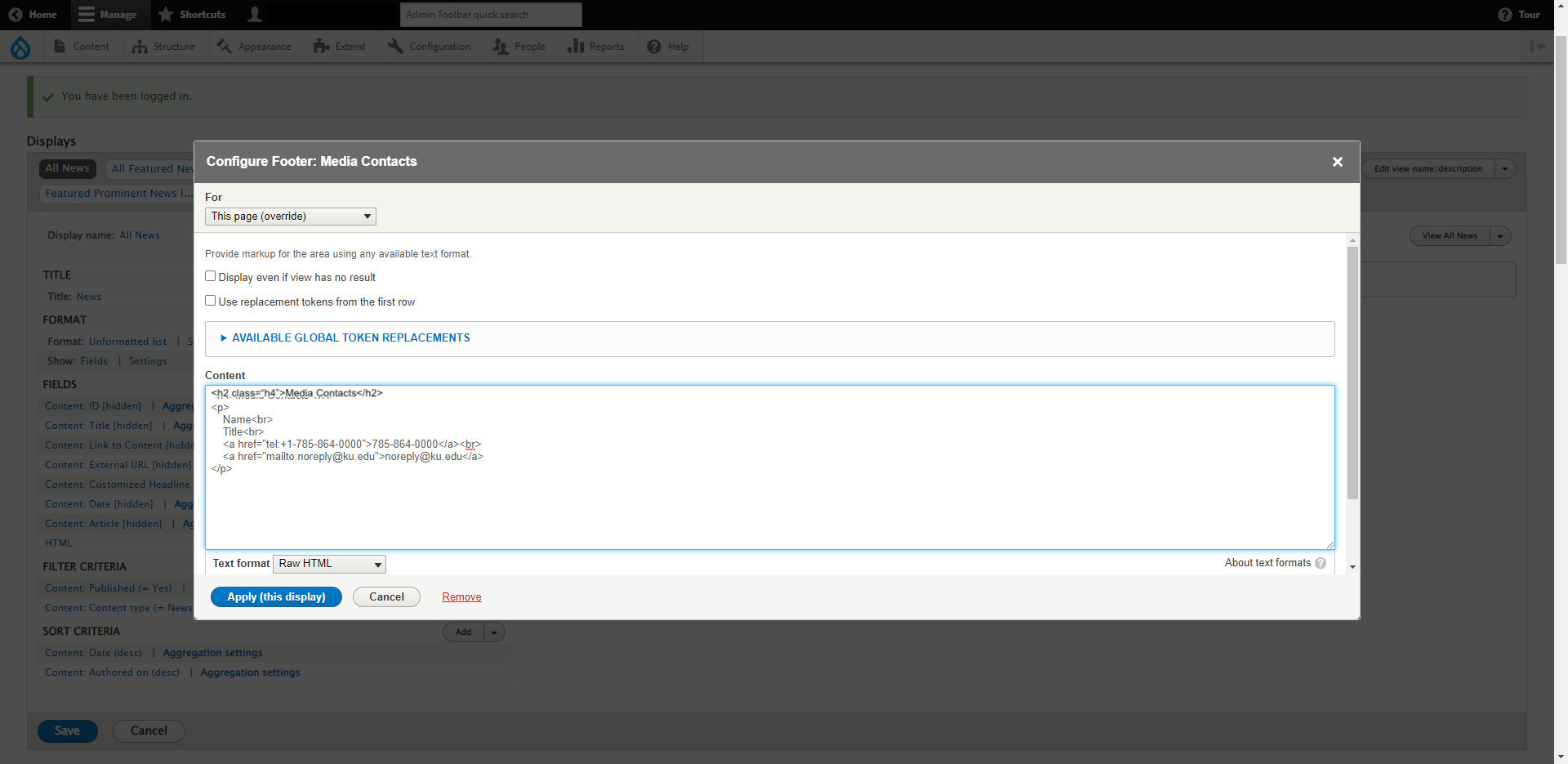
- You will need to replace the entire contents of the "Content" area with the code provided below. See the following screenshot:

- Use the code below to replace the default code, substituting your contact information. Copy and paste the following text into text area highlighted in the previous step:
<h2 class="h4">Media Contacts</h2>
<p>
Name<br>
Title<br>
785-864-0000<br>
<a href="mailto:noreply@ku.edu">noreply@ku.edu</a>
</p>
- When replacing this information, pay special attention to the following:
- Note you are changing the default header tag to <h2 class="h4">.
- Make sure there is a <p> at the start and a </p> at the end, as shown above.
- Make sure the <br> is at the end of each line, except the last line. That line will only have the </p> after.
- For the phone and email lines, be sure to replace the phone numbers and emails in the link, (the part inside the <a></a>,) and the text
- After updating this information, select the blue button labeled "Apply (this display)"
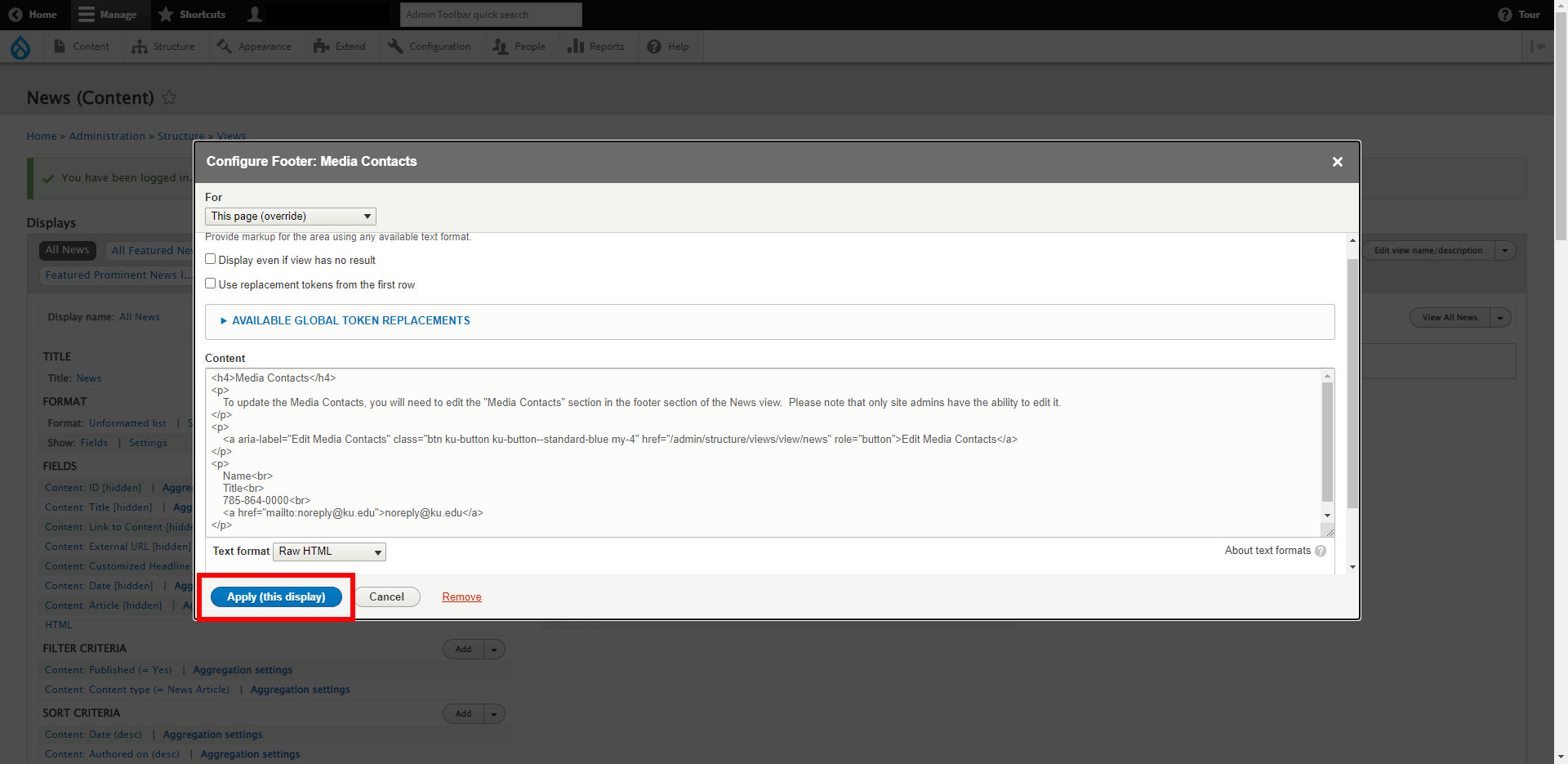
- From the admin screen, select the "Save" button in the lower left to save your changes. You may have to scroll down to see the button.
- Navigate back to the /news page and verify the information has been updated.
- If you have any trouble, or if you are not comfortable making these changes, contact Web Services at webservices@ku.edu for help.